

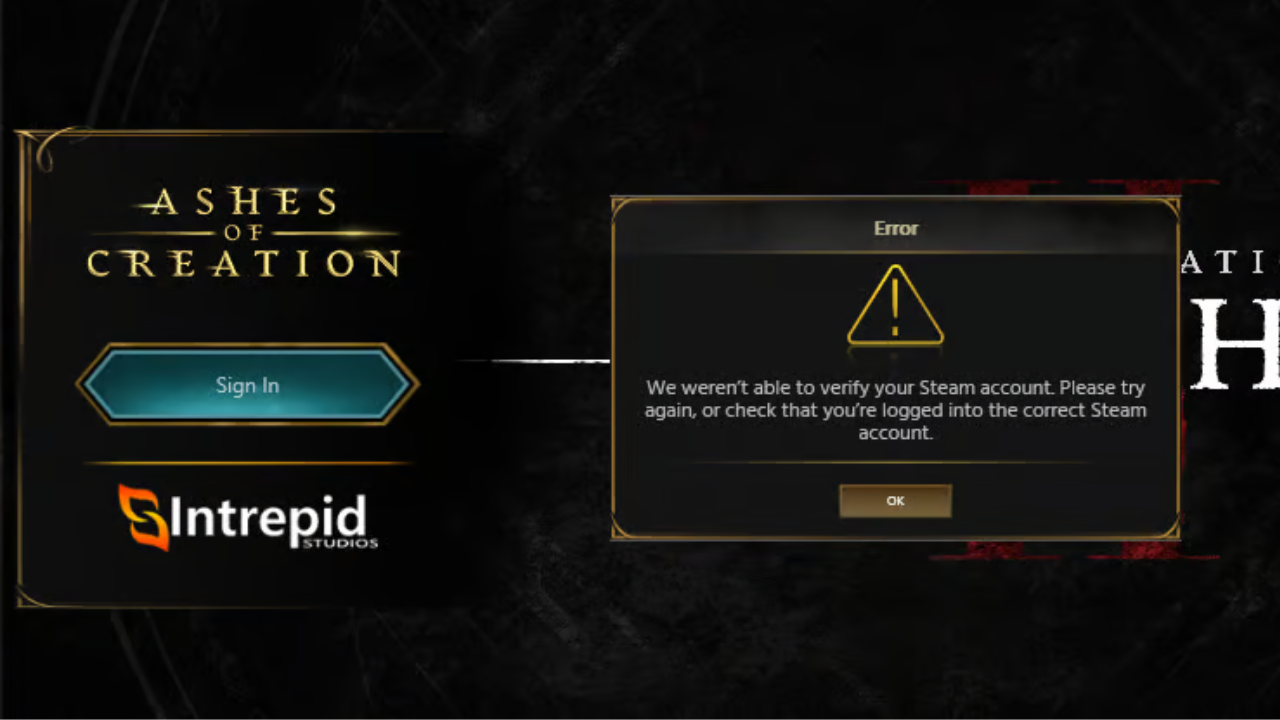
Seeing the error “We weren’t able to verify your Steam account” in Ashes of Creation can be frustrating—especially when you’re stuck at the launcher and just want to play. This issue has become fairly common since the game’s Steam release and is usually related to account linking, launcher data, or authentication problems.
The good news? In most cases, it’s fixable by following a few simple steps.
What Causes This Error?
This message appears when the Intrepid Launcher fails to authenticate your Steam account with your Intrepid Studios account. The most common causes include:
- Corrupted launcher cache or saved login data
- Incomplete or broken Steam account linking
- Steam or Intrepid authentication server issues
Let’s walk through the fixes from most effective to last resort.
1: Clear the Intrepid Launcher Cache (Most Effective Fix)
For many players, clearing the launcher’s stored data solves the issue immediately.
How to do it:
- Open the Intrepid Studios Launcher
- Click the gear icon (Settings) in the top-right corner
- Go to the General tab
- Click Clear Login Session
- Fully close the launcher
- Restart your PC
After rebooting, open the launcher again and log in.
2. Verify Ashes of Creation Game Files on Steam
Corrupted or missing files can interfere with Steam verification.
Steps:
- Open Steam and go to your Library
- Right-click Ashes of Creation
- Select Properties → Installed Files
- Click Verify integrity of game files
- Wait for the process to finish
- Restart Steam and try launching the game again
How to Properly Link Your Steam Account to Ashes of Creation
If your accounts aren’t linked correctly, the game won’t verify ownership.
Follow these steps carefully:
- Log in to your account on ashesofcreation.com
- Open Account Settings
- Go to Account Connections
- Click Connect under Steam
- Log in to the correct Steam account
- Approve the connection request
- Wait for the confirmation message
Once linked, Ashes of Creation should appear in your Steam Library.
This Steam verification error is rarely permanent. In most cases, clearing the launcher cache and verifying files resolves the issue within one or two attempts.
Related Guides:
